Customized Cash Management & Online Service Solutions
Let us help you tailor the options that make sense for your business. Check out our menu of solutions.
Account Alerts
Setup account alerts to notify you about activity on your account. We can help you tailor alerts to put your mind at rest!
|
ACH Origination
ACH Transactions
The ACH (Automated Clearing House) network is used to transmit funds electronically between financial institutions. Five Points Bank delivers the ACH network to you via our Internet Cash Management ACH options. This allows your business to perform:
|
Bill Pay
Pay bills quickly and securely online at any time. Conveniently organize billers by type and due date, set up automatic payments, view and export history and even control which employees can enter and approve payments.

|
CardValet®
Protect the Five Points Bank cards in your wallet with CardValet. Use your smartphone and our free app to turn your card 'on' or 'off' at any time, set spending limits, set alerts and control where your cards can be used. CardValet is a great tool for business accounts!

|
Merchant Services
Simplify your business operations with Clover
Owning a business can be demanding--from tracking inventory and supervising employees to taking orders and everything in between! That's why we’ve teamed up with Clover. Clover can help simplify your operations with an all-in-one payment processing system and business management solution tailored to meet the unique needs of restaurants, retailers and services businesses.
Clover can help you:
- Accept more types of payments including EMV® chip cards, Apple Pay® and Samsung Pay®
- Help protect your customers, business and reputation from fraud with built-in security
- Help generate more visits and more sales through mobile loyalty and rewards programs
- Uncover new insights and compare sales against competition within your market
- Grow your business online and manage everything in one place
- Manage inventory, employee schedules, payroll and more
Clover Point-of-Sale (POS) Systems
In addition to hundreds of business management applications and built-in reporting capabilities, Clover point of sale solutions include:
- Clover Go – All-in-one contactless, chip and swipe card reader that wirelessly pairs with a mobile device.
- Clover Flex – Accept payments tableside, in-line, on the floor, or off premises with this handheld portable POS. Includes: built-in receipt printer, camera, and QR scanner in a single device.
- Clover Mini – Compact, countertop system with full-scale POS functionality that can connect to cash drawer.
- Clover Station Solo – All-in-one countertop, POS and business management system with one merchant-facing screen and a receipt printer that enables you to run your business efficiently.
- Clover Station Duo – A fast and powerful all-in-one countertop POS and business management system with a second screen that lets customers initiate payment and view the transaction.
- Virtual Terminal – Run your business from your laptop, phone or tablet.
Regardless of what kind of business you run, you deserve a payment system that works for the way you do business. Our Merchant Card Processing gives our customers access to payment options.
Click here to view more information about Merchant Card Processing.
Contact Cash Management
Five Points Bank
Cash Management
308-389-8769
Email Us
Five Points Bank of Hastings
Cash Management
402-462-2228
Email Us
© 2022 Clover Network, LLC. The Clover name, logo and related trademarks are owned by Clover Network, LLC and are registered or used in the U.S. and many foreign countries. Merchant services are provided by are provided by Clover affiliate First Data Merchant Services LLC. All trademarks, service marks and trade names referenced in this material are the property of their respective owners.
|
Mobile Banking
Our mobile business app keeps you in touch, so your business doesn't have to come to a halt when you are not in the office. Authorized users will be able to:
- view accounts
- review transactions
- approve and make internal ACH or wire transfers
- deposit checks
- set alerts
- make payments
- approve transactions
Authorized users can also approve payments, transfers, positive pay exceptions, and bill payments.

|
Mobile Deposit
Deposit checks from your smartphone or tablet with our free business banking app.

|
Positive Pay
Positive Pay is one of the best ways for businesses to protect themselves from check fraud. Upload a file of checks you have written and we will notify you if there are any exceptions. It’s a powerful way to protect your business from fraud.

|
Remote Deposit Capture
Make deposits from anywhere using our Remote Deposit Capture Services. We have solutions for businesses of all sizes.
SmartSource Supply Order Form
|
Secure Online Chat
If you find yourself in need of assistance, simply click Chat during business hours to be connected to a Customer Service Representative.
Five Points Bank Agent Connect
When requested by a Five Points Bank representative, click here to direct chat with a specific agent. You will be provided with an access token by the agent to initiate a direct chat session.
Five Points Bank of Hastings Agent Connect
When requested by a Five Points Bank of Hastings representative, click here to direct chat with a specific agent. You will be provided with an access token by the agent to initiate a direct chat session.
|
Security Token
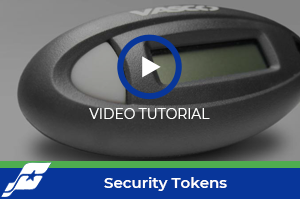
Tokens add another level of banking security for your business. Press the button on the security token to get a one-time passcode that you'll use when logging into your account. It's one more way to protect your accounts from fraud.
|
Wire Transfers
Our secure online wire service allows you to have complete control over your wire functions. Set up and transmit wire transfers with our easy-to-use online wire form. Maintain wire instructions within this service for recurring wire for ease of use. When you’re ready to transmit the wire transfer, simply enter the amount and transmit.
|
About Us
Contact Cash Management
Five Points Bank
Cash Management
308-389-8769
Email Us
Five Points Bank of Hastings
Cash Management
402-462-2228
Email Us
|

